




Running multiple websites for your business sounds manageable until you’re logging in and out of separate dashboards, chasing down plugin updates across three different installs, and realising your newest site still has placeholder text from six weeks ago. For Australian small business owners juggling a main brand site, a regional landing page, and maybe a separate e-commerce store, this fragmented approach quietly drains hours every week. Multi-site hosting offers a smarter path: one environment, centralised control, and the ability to scale without the administrative chaos. This guide walks you through what you need, how to set it up, and how to confirm it’s working properly.
Table of Contents
- What is multi-site hosting and why does it matter?
- What you need: Key requirements and server specs
- Step-by-step: Setting up WordPress Multisite
- Common pitfalls and how to verify your setup
- What most guides forget: Real-world lessons from scaling multi-site networks
- Get help with your domain, hosting, and website setup
- Frequently asked questions
Key Takeaways
| Point | Details |
|---|---|
| Define your hosting needs | Assess business goals and site numbers to choose multi-site or separate setup. |
| Gather requirements first | Check server specs and tools before start to avoid costly upgrades. |
| Follow the setup workflow | Use the step-by-step process to configure WordPress Multisite reliably. |
| Verify and troubleshoot | Test admin functions and address common mistakes for optimal performance. |
| Consider plugin/theme overlap | Use multi-site hosting where sites share at least 70% plugins and themes. |
What is multi-site hosting and why does it matter?
Multi-site hosting means running more than one website from a single hosting environment, managed through a shared control panel or network. For WordPress users specifically, this usually takes one of two forms: WordPress Multisite or add-on domains with separate installs.
WordPress Multisite hosting is a single WordPress installation that manages multiple sites under one network. Add-on domains, by contrast, are separate WordPress installs living under the same hosting account but operating independently. Both approaches have their place, and choosing the right one depends entirely on your business structure.
WordPress Multisite suits you if:
- Your sites share similar design, plugins, and functionality
- You want one login to manage everything
- You’re running franchise locations, regional sites, or a network of related brands
- You want to reduce plugin licensing costs by sharing them across sites
Add-on domains suit you if:
- Your sites are quite different in purpose or audience
- You need each site to operate independently with its own database
- You want to avoid the risk of one site’s issue affecting the others
Here’s a quick comparison to help you decide:
| Feature | WordPress Multisite | Add-on domains (separate installs) |
|---|---|---|
| Management | Single dashboard | Multiple logins |
| Plugin sharing | Yes, network-wide | No, each install separate |
| Resource use | Shared, more efficient | Independent |
| Migration difficulty | High (40+ hours per site) | Low to moderate |
| Best for | Similar, related sites | Diverse, unrelated sites |
| Cost efficiency | Higher for similar sites | Lower for varied sites |
The business value of getting this right is real. Centralised management saves time, reduces the risk of missed updates, and makes it far easier to maintain consistent branding. Explore your WordPress hosting options or consider general web hosting if you’re still weighing up which path fits your setup.
What you need: Key requirements and server specs
Before you touch a single configuration file, you need to make sure your hosting environment can actually handle what you’re asking of it. This is where many small business owners stumble: they underestimate how much resource a multi-site network demands as it grows.
Server benchmarks for WordPress Multisite give a clear picture of what you’re working with at different scales:
| Network size | vCPUs | RAM | Storage |
|---|---|---|---|
| Small (5 to 10 sites) | 2 vCPUs | 2 to 4 GB | 80 GB SSD |
| Medium (10 to 50 sites) | 4 vCPUs | 8 GB | 160 GB NVMe |
| Large (50+ sites) | 8+ vCPUs | 16 to 32 GB | 320 GB+ NVMe |
For most Australian small businesses starting with two to five sites, a quality shared hosting plan or entry-level VPS will do the job. But if you’re planning to grow, start with more room than you think you need. Upgrading mid-network is disruptive and often forces a migration.
Your pre-setup checklist:
- A registered domain for your primary site (and additional domains if needed)
- Access to your hosting control panel (cPanel, Plesk, or equivalent)
- PHP 8.0 or higher and MySQL 5.7 or higher
- A working WordPress install on your primary domain
- FTP or SSH access to edit core files
- A recent full backup of your existing site
- Redis caching configured if you’re running more than 10 sites
- A separate database user for the network (recommended for medium to large setups)
Good domain management tools make a significant difference here, particularly when you’re mapping custom domains to individual sites in the network. And if you haven’t locked in all your domains yet, sort out your domain registration before you begin setup, not halfway through.
Pro Tip: Choose the subdirectory structure (yourdomain.com.au/site2) over subdomains (site2.yourdomain.com.au) unless distinct branding is absolutely essential. Subdirectories are simpler to configure, require no wildcard DNS, and are generally easier for search engines to associate with your main domain authority.
One mistake we see repeatedly is businesses skipping the backup step because “nothing important has changed recently.” A corrupted wp-config.php file during setup with no backup is a painful and entirely avoidable situation. Always back up first, every time, without exception.
Step-by-step: Setting up WordPress Multisite
With your environment ready and your checklist ticked off, here’s how to actually build the network. This process modifies core WordPress files, so work carefully and methodically.
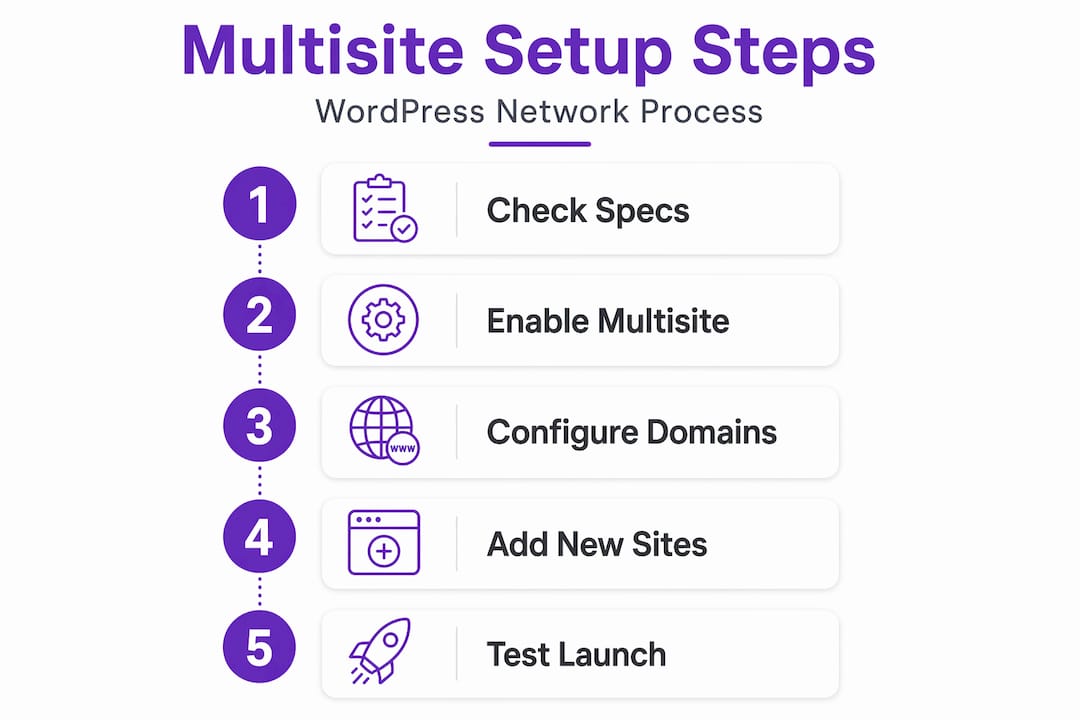
The standard WordPress Multisite setup follows these steps:
- Back up your site completely. Export your database and download all files via FTP. Store the backup somewhere off-server.
- Deactivate all plugins. Go to Plugins > Installed Plugins, select all, and choose Deactivate. This prevents conflicts during the network activation process.
- Enable Multisite in wp-config.php. Open the file via FTP or your hosting file manager and add the following line above the line that reads “That’s all, stop editing!”: “define(‘WP_ALLOW_MULTISITE’, true);`
- Navigate to Tools > Network Setup in your WordPress dashboard. You’ll be prompted to choose between subdomain and subdirectory structure. Make this choice carefully as it cannot be changed later without a full migration.
- Add the generated code to wp-config.php and .htaccess. WordPress will display two blocks of code. Copy each one exactly into the correct file. A single missed character here will break your install.
- Configure wildcard DNS if using subdomains. Log into your domain registrar or DNS manager and add a wildcard A record pointing *.yourdomain.com.au to your server’s IP address. This tells DNS to route any subdomain to your network.
- Log back in and test the Network Admin panel. You’ll now see a “My Sites” menu and a “Network Admin” area at the top of your dashboard. This is your central control hub.
“The most common point of failure in Multisite setup is the .htaccess file. If your sites return 404 errors after setup, regenerate the .htaccess rules by going to Settings > Permalinks in the Network Admin and clicking Save Changes.”
Adding new sites to the network is straightforward from here. Go to Network Admin > Sites > Add New, enter the site address, title, and admin email, and the site is live within seconds. You can then activate themes and plugins network-wide or on a per-site basis, giving you granular control without multiple logins.
If you run into configuration issues, WP hosting support from a local provider can save you hours of troubleshooting. And once your network is running, investing time in website design tips for each site ensures your individual properties look polished and professional, not like clones of each other.
Pro Tip: Before launching each new site to the public, test it on a staging subdirectory or with a temporary URL. Check that contact forms, e-commerce functions, and any custom plugins work correctly in the network environment. Plugins behave differently in Multisite compared to standalone installs.
Common pitfalls and how to verify your setup
Setup complete doesn’t mean setup correct. Here’s how to verify everything is working and what to watch for in the weeks after launch.
Verification checklist:
- Log in to Network Admin and confirm all sites appear under Sites > All Sites
- Visit each site’s front end and confirm it loads correctly
- Check that plugins activated network-wide are functioning on each individual site
- Confirm DNS is resolving correctly for any mapped custom domains
- Test admin access for any sub-site administrators you’ve created
- Run a speed test on each site to establish a performance baseline
- Verify your backup solution is capturing the entire network, not just the primary site
Common pitfalls to watch for:
- Plugin incompatibility. Not every WordPress plugin is built for Multisite. Some plugins store data in ways that conflict with the shared database structure. Always check plugin documentation before network-activating.
- Theme conflicts. Themes must be network-enabled before sub-site administrators can activate them. Forgetting this step locks site admins out of their own design settings.
- Resource bottlenecks. Because all sites share the same server resources, a traffic spike on one site affects every other site on the network. This is one of the most significant trade-offs of the Multisite approach.
- Security exposure. A vulnerability in one site or plugin affects the entire network. Keep everything updated and use a network-level security plugin.
The migration concern deserves special attention. Migrating individual sites out of a Multisite network can take over 40 hours per site due to the shared database structure, interlinked file directories, and the need to reconstruct each site as a standalone install. This is not a small task. If there’s any chance a particular site will need to operate independently in the future, consider whether a separate install from the start might be the wiser choice.
For ongoing management, solid domain management advice is particularly useful when you’re handling custom domain mapping across multiple network sites. Getting DNS right from the beginning prevents a cascade of access and indexing problems later.
What most guides forget: Real-world lessons from scaling multi-site networks
Most setup guides stop at “it’s working.” What they don’t tell you is what happens six months later when you’ve added four more sites, your hosting plan is straining, and one of your sub-site admins accidentally deactivated a network-critical plugin.
The single most important factor in a successful Multisite network is plugin and theme overlap. Expert analysis of Multisite performance consistently shows that networks where sites share at least 70% of their plugins and themes perform well and are easy to manage. Networks where each site needs completely different tools quickly become unmanageable and defeat the entire purpose of centralised hosting.
Here’s the uncomfortable truth: multi-site hosting is not a universal solution. It’s a powerful tool for the right situation and a frustrating liability for the wrong one. We’ve seen Australian businesses set up Multisite to manage a retail site, a trade services site, and a personal blog under one account. The sites had almost nothing in common technically, and within a year the owner was dealing with plugin conflicts, performance issues, and a network that was harder to manage than three separate installs would have been.
The subdirectory versus subdomain debate is also more consequential than most guides acknowledge. Subdirectory structures (yourdomain.com.au/brisbane, yourdomain.com.au/sydney) consolidate domain authority and are simpler for DNS management. Subdomain structures (brisbane.yourdomain.com.au) are treated by search engines as separate entities, which can dilute your SEO unless each subdomain has strong independent content. For most Australian small businesses, subdirectory is the right call unless you’re running genuinely distinct brands that need separate identities.
Traffic planning is another area where businesses get caught short. A promotional campaign that drives a spike to one site in your network will slow down every other site simultaneously. This is not a bug; it’s the nature of shared resources. Plan your hosting capacity for peak traffic across your entire network, not just your busiest site on an average day. Quality best hosting tips will always emphasise this point, and it’s worth taking seriously before you launch rather than after your first big campaign.
Get help with your domain, hosting, and website setup
Taking on multi-site hosting is a significant step, and having the right support behind you makes all the difference between a smooth rollout and a frustrating rebuild.
At Distribute, we work with Australian small businesses every day to get their online presence right from the start. Whether you need managed domain solutions to keep your custom domain mapping clean and reliable, WP hosting packages sized for your current network and your growth plans, or professional site design to make sure each site in your network looks the part, we’ve got local expertise and genuine support ready for you. No offshore call centres, no generic advice. Just practical help from a team that understands the Australian market and wants to see your business grow online.
Frequently asked questions
Can I host different websites with unique domains using multi-site?
Yes, WordPress Multisite supports custom domain mapping so each site in your network can have its own unique domain. Alternatively, add-on domains with separate installs achieve the same result with greater site independence.
Do I need a VPS for multi-site hosting in Australia?
For networks of up to 10 sites, a quality shared plan or entry-level VPS is typically sufficient. Larger networks benefit from dedicated VPS or cloud hosting with NVMe storage and Redis caching for reliable performance.
Is it easy to migrate a single site out of a multi-site network?
It is not straightforward. Migrating one site out of a WordPress Multisite network is a complex process that can take over 40 hours, so plan your network structure carefully before you commit.
What’s the best structure for my sites: subdomain or subdirectory?
For most Australian business networks, subdirectory setup is easier to manage and better for consolidated SEO. Subdomain structure is worth considering only when your sites need genuinely distinct brand identities.
Leave a Reply