




Losing your website overnight is not a hypothetical risk. Servers get compromised, plugins conflict, hosting accounts get suspended, and human error deletes things that should never be deleted. When you fail to back up your small business website properly, you are not just risking a few hours of downtime. You are risking lost orders, broken customer trust, and potentially weeks of rebuilding from scratch. This guide walks you through everything you need to do before, during, and after setting up backups, so your site is genuinely protected and recoverable when something goes wrong.
Table of Contents
- Key takeaways
- How to back up a small business website: preparation first
- Step-by-step backup methods that actually work
- Mistakes that undermine your backups
- How to verify and restore your backups
- Comparing backup solutions for small businesses
- My honest take on website backups
- Protect your site with the right hosting from the start
- FAQ
Key takeaways
| Point | Details |
|---|---|
| Layered backups are non-negotiable | Combine hosting snapshots, plugin-based backups, and offsite cloud storage for real protection. |
| Databases need frequent backups | E-commerce sites require database snapshots every 4 to 6 hours to avoid losing order data. |
| Off-server storage is critical | Storing backups on the same server as your live site leaves you exposed to total loss. |
| Test restores quarterly | A backup that has never been tested is not a backup. Restore it to a staging environment regularly. |
| Retention periods matter | Standard sites should retain backups for 30 days; e-commerce sites need at least 60 days. |
How to back up a small business website: preparation first
Before you touch a single backup tool or plugin, you need to know exactly what you are backing up. Skipping this step is how businesses end up with partial backups that cannot actually restore a working site.
Know what your site is made of
Different website types have different backup requirements. A static HTML site is straightforward. A WordPress site running WooCommerce is another matter entirely. Your backup needs to cover three core components: your website files (themes, plugins, uploaded media), your database (which holds posts, orders, customer records, and settings), and your configuration files (including your ".htaccessandwp-config.php`).
Many small business owners assume their hosting provider handles all of this. Sometimes they do. Often they do not cover it comprehensively enough. Understanding your hosting plan type is a useful starting point for figuring out what backup provisions are already in place.
Choose your storage destinations
Where you store your backups matters as much as how often you create them. You have three practical options.
- Local storage: An external hard drive or your own computer. Fast to restore, but useless if a fire or theft wipes out your office.
- Cloud storage: Services like Amazon S3, Google Drive, or Dropbox. Cost-effective and accessible from anywhere.
- Hybrid storage: A combination of both local and cloud. Hybrid backup approaches offer quick local recovery combined with offsite resilience, giving you both speed and redundancy.
Set your schedule and retention policy
For a standard small business site updated a few times a week, daily automated backups with a 30-day retention period is the baseline. For WooCommerce or any e-commerce site, e-commerce sites need full daily backups plus database-only snapshots every 4 to 6 hours. That frequency captures real-time order data and prevents you from losing transactions between backup windows.
Pro Tip: Set a calendar reminder to review your backup schedule every quarter. Your site changes over time and your backup frequency should reflect that.
Step-by-step backup methods that actually work
There is no single correct way to back up a website. What works for a three-page brochure site will not work for a 5,000-product WooCommerce store. Here is a practical breakdown of the main methods.
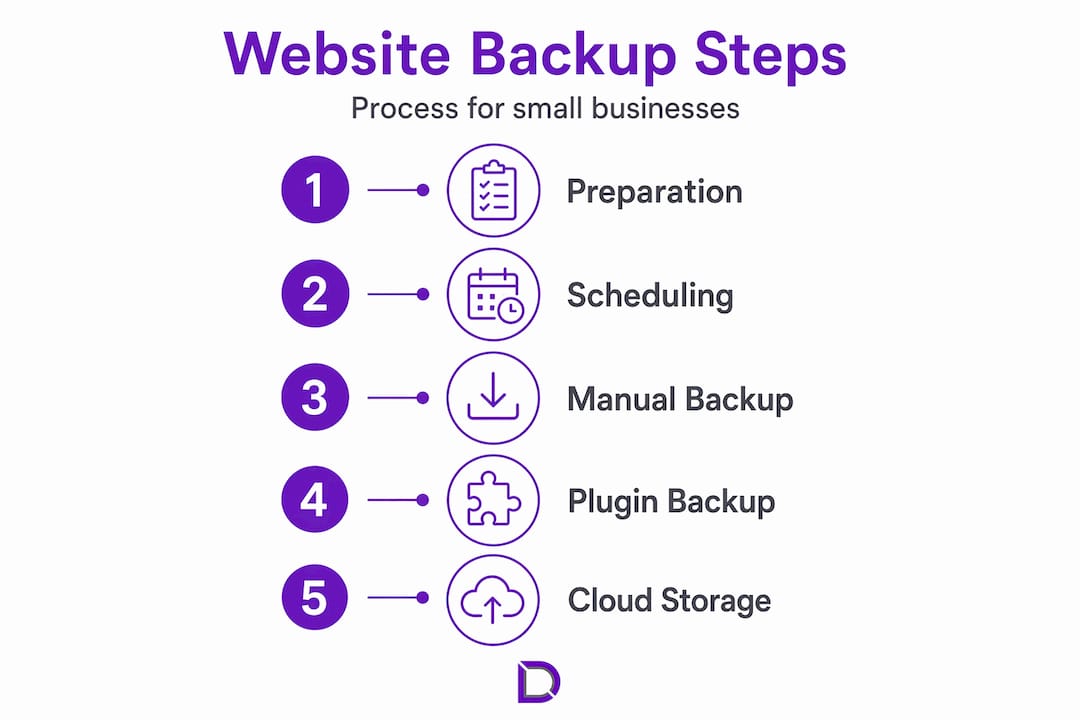
Method 1: Manual backups via FTP and phpMyAdmin
This approach works for simple static or WordPress sites and requires no paid tools.
- Connect to your hosting account using an FTP client (FileZilla is widely used).
- Download your entire
public_htmlfolder to your local machine. This captures all your website files. - Log in to your hosting control panel and open phpMyAdmin.
- Select your site’s database, click Export, and download the SQL file.
- Store both the file folder and the SQL export in a clearly labelled folder with the date.
- Upload a copy to cloud storage for offsite redundancy.
Manual backups via FTP are reliable when done consistently, but they depend entirely on your discipline. Miss a week and you are exposed. They also become impractical if your site is updated daily.
Method 2: Automated WordPress plugin backups
For WordPress sites, automated plugins remove the discipline problem entirely. UpdraftPlus is the most widely used option, with a free tier that covers most small business needs. BackWPup is another solid choice.
| Plugin | Free tier | Cloud storage options | Schedule control | Restore from dashboard |
|---|---|---|---|---|
| UpdraftPlus | Yes | Google Drive, Dropbox, S3, FTP | Yes | Yes |
| BackWPup | Yes | Dropbox, S3, FTP, email | Yes | Partial |
| Duplicator | Yes (limited) | Local only (free) | No (free) | Yes |
Once configured, these plugins run silently in the background and send backups directly to your cloud storage destination. They also alert you when a backup fails, which is more important than most people realise.
Pro Tip: When setting up UpdraftPlus with Amazon S3, configure an IAM user with write-only access to your backup bucket. This prevents attackers from deleting backups even if your WordPress site is fully compromised.
Method 3: Cloud backup services
Cloud backup solutions are cost-effective and require minimal ongoing management, making them popular with small businesses that do not have dedicated IT staff. Backblaze B2 is a standout option for Australian businesses needing affordable offsite storage, with pricing well below the major cloud providers. Many managed hosting services include automated daily backups and offsite storage as part of the hosting package, removing the need for separate backup configuration altogether.

Mistakes that undermine your backups
Getting a backup system in place is one thing. Keeping it working reliably is another. These are the errors that quietly destroy backup strategies over time.
- Storing backups on the same server as your live site. This is perhaps the most common critical flaw. Backups on the same account are wiped out along with your site if the hosting account is suspended, hacked, or corrupted. Always send backups to an external destination.
- Skipping database backups. Files without a database restore a broken shell. For WooCommerce sites, backing up only files loses all transactional data. Your database is the site.
- Ignoring backup failure notifications. Automated systems fail silently. A plugin can stop connecting to your cloud storage for weeks without you noticing unless you read the alert emails.
- Never testing a restore. This is the most dangerous oversight of all. Having a backup file and being able to restore a working site are two entirely different things.
- Keeping backups for too short a period. If a problem goes unnoticed for two weeks (which happens with malware injections), a seven-day retention window leaves you with nothing clean to restore from. WordPress sites need at least 30 days of retention; e-commerce sites need 60.
“Most small business backup setups fail because they rely solely on hosting snapshots stored on the same account. The result is a false sense of security that only becomes obvious in a crisis.”
A good starting point for understanding your exposure is to look at your business continuity planning posture overall. Website backups are one component of a broader recovery strategy.
How to verify and restore your backups
A backup you have never restored is an assumption, not a safety net. A backup is only valid if tested by actually restoring it, and this step gets skipped more often than any other.
Here is how to run a proper restore test without touching your live site.
- Set up a staging environment. Most managed hosting providers offer one-click staging. Alternatively, use a subdomain or a local environment like Local by Flywheel.
- Locate your most recent backup file in your cloud storage destination.
- Use your backup plugin’s restore function to push the backup to the staging environment.
- Check that the site loads correctly, all pages are functional, and no content is missing.
- For WooCommerce, verify that recent orders and customer records appear in the database.
- Document the date and result of the test.
Do this at minimum once per quarter. If your site changes frequently or you run e-commerce transactions daily, monthly restore tests are worth the effort. Recovery time matters too. A manual restore from FTP and phpMyAdmin can take several hours. A plugin-based restore from a current backup typically takes 15 to 30 minutes. That difference has real business implications.
Pro Tip: Keep at least three backup copies in two different locations. One on your local machine, one in cloud storage, and the third via your hosting provider’s snapshot system. No single failure can then eliminate all your options.
Comparing backup solutions for small businesses
Not every backup approach suits every business. Here is a practical comparison to help you choose.
| Solution | Best for | Approx. cost | Automation | Off-server storage |
|---|---|---|---|---|
| UpdraftPlus (free) | WordPress sites, low budget | Free | Yes | Yes (cloud) |
| UpdraftPlus Premium | WordPress, e-commerce | ~AU$90/year | Yes | Yes (multiple) |
| Backblaze B2 + plugin | Any site, low storage cost | ~AU$8/month | Plugin-dependent | Yes |
| Managed hosting backup | Non-technical owners | Bundled | Yes | Varies by host |
| Manual FTP + phpMyAdmin | Simple static sites | Free | No | Only if you manually upload |
Managed IT providers offering hybrid backup solutions help small businesses maintain data security with professional oversight, which suits businesses where the owner does not want to manage technical systems personally. For most small businesses running WordPress, a combination of UpdraftPlus and a cloud storage destination sits at the intersection of affordability, automation, and reliability.
My honest take on website backups
I have worked with dozens of small business websites over the years, and the pattern I see most often is the same. The backup system was set up once, was never checked again, and was discovered to be broken at the worst possible moment.
The uncomfortable truth is that most business owners treat backups as a one-time task rather than an ongoing discipline. They install a plugin, point it at Dropbox, and assume they are covered. What I have found is that relying solely on hosting snapshots is an inadequate setup that catches businesses out regularly.
What actually changed my thinking was the first time I did a restore test on a client site that had been “backing up” for six months. The backup files existed but the database export had been failing silently since a plugin update changed the database prefix. The files were there. The database was not. That site would have been unrecoverable.
My recommendation is to treat backups like a smoke detector. You install it, you test it regularly, and you know exactly what to do when it goes off. A layered approach combining a WordPress plugin, an offsite cloud destination, and a quarterly restore test is not complex. It is just disciplined. And for a small business, that discipline is the difference between a bad afternoon and a catastrophic loss.
— James
Protect your site with the right hosting from the start
Building a reliable backup strategy starts with knowing your hosting environment inside out. Com offers web hosting for small businesses with automated backup features, offsite storage options, and the personalised Australian support that makes a real difference when something goes wrong.
Whether you are setting up your first site or migrating an existing one, Com’s team can help you understand what backup provisions are included with your plan and what additional steps make sense for your specific setup. Pair that with solid domain management and you have a stable foundation for your entire online presence. If you are just getting started, the free business checklist walks you through the key steps to get your website set up and secured the right way from day one.
FAQ
How often should I back up my small business website?
Daily backups are the standard for most small business websites. If you run an e-commerce store, you should also run database-only backups every 4 to 6 hours to capture order data in real time.
What files do I need to include in a website backup?
A complete backup includes your website files (themes, plugins, media), your database, and your configuration files. Missing the database means your restore will produce a broken or empty site.
Is it safe to store backups on my hosting account?
No. Storing backups on the same hosting account as your live site creates a single point of failure. If your account is hacked, suspended, or corrupted, you lose both the live site and the backup simultaneously.
How do I know if my backups are actually working?
The only reliable way to confirm a backup works is to restore it to a staging environment and verify the site functions correctly. Checking that a backup file exists is not enough. Test restores should happen at least every quarter.
What is the best backup solution for a small business on a budget?
UpdraftPlus with a free Google Drive or Dropbox destination covers most small business WordPress sites at no cost. For e-commerce sites, upgrading to UpdraftPlus Premium adds incremental backups and better scheduling control for around AU$90 per year.
Leave a Reply