




If you’ve ever felt confused about what a hosting control panel actually does, you’re not alone. Many small business owners assume that managing web hosting requires deep technical knowledge, but a hosting control panel changes that entirely. It’s a graphical, web-based dashboard that lets you manage your website, emails, files, and server settings without touching a single line of code. This guide explains exactly what a hosting control panel is, what it does, and how to use one with confidence, even if you’ve never managed a website before.
Table of Contents
- Key takeaways
- What is a hosting control panel?
- Features of hosting control panels
- Comparing popular hosting control panels
- How to access and use your control panel
- My take on choosing the right control panel
- Ready to take control of your hosting?
- FAQ
Key takeaways
| Point | Details |
|---|---|
| Control panels replace command lines | They turn complex server tasks into simple point-and-click actions anyone can manage. |
| Core features cover everything | Domains, email, files, databases, SSL, and backups are all handled from one dashboard. |
| Security matters from day one | Enable two-factor authentication immediately to protect every site and account you host. |
| Most plans include one for free | Control panels are bundled into shared hosting plans at no extra cost. |
| Choose based on your needs | Ease of use and resource efficiency matter more than having the most features. |
What is a hosting control panel?
A hosting control panel is a graphical, web-based dashboard that gives you a visual interface to manage your web hosting account and server settings. Think of it as the cockpit of your website. Instead of typing commands into a black terminal screen, you click buttons, fill in forms, and toggle settings through a browser.
Before control panels existed, managing a web server meant learning Linux commands, editing configuration files manually, and knowing exactly what you were doing. That put website management firmly in the hands of developers and system administrators. Control panels changed all of that by turning complex, command-line server management into a user-friendly, point-and-click experience.
Through a hosting control panel, you can typically handle all of the following:
- Register and manage domain names and DNS settings
- Create and manage email accounts tied to your domain
- Upload, organise, and edit website files
- Set up and manage databases for platforms like WordPress
- Install SSL certificates to secure your site
- Run backups and restore your website if something goes wrong
- Install popular applications like WordPress with a single click
The graphical interface removes the need to memorise Linux or server commands, which makes website management genuinely accessible to people without a technical background. For individuals and small businesses, that’s a significant shift. You no longer need to hire a developer just to add an email address or point your domain to a new server.
Features of hosting control panels
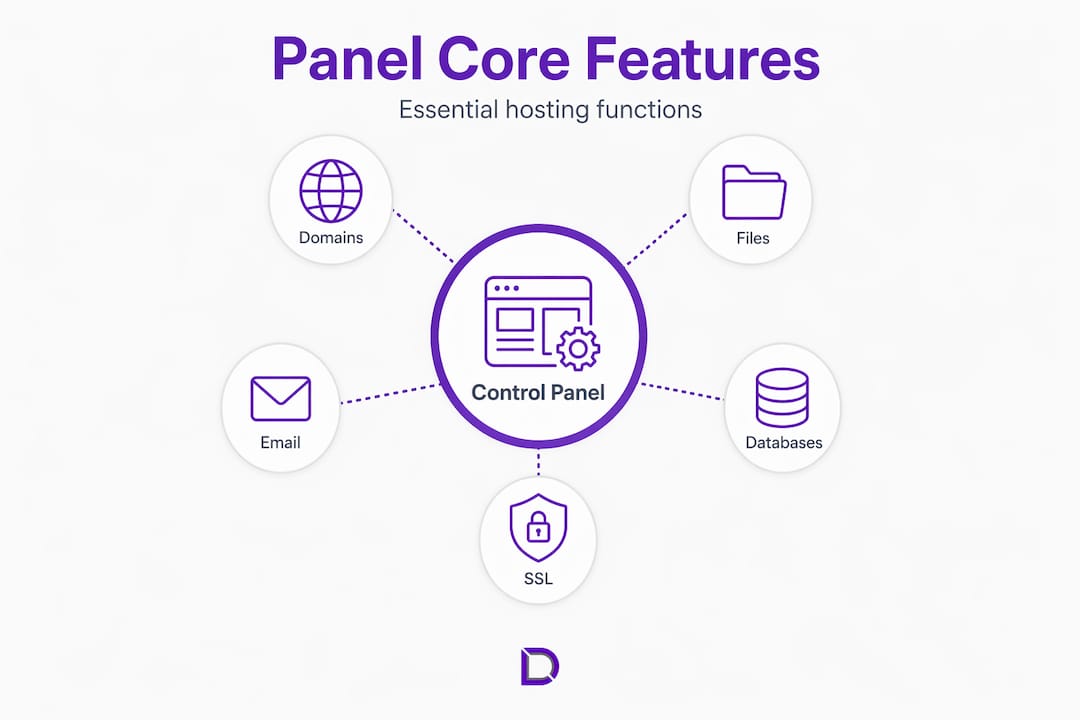
Understanding the features of hosting control panels helps you get far more out of your hosting account. Most control panels group their tools into logical categories, so once you know what to look for, finding what you need becomes second nature.
Domain and DNS management
From your control panel, you can add new domains, set up subdomains, and configure DNS records. This is where you tell the internet where to find your website. If you ever move your site to a new server or add a service like Google Workspace, you’ll update your DNS settings right here.
File management
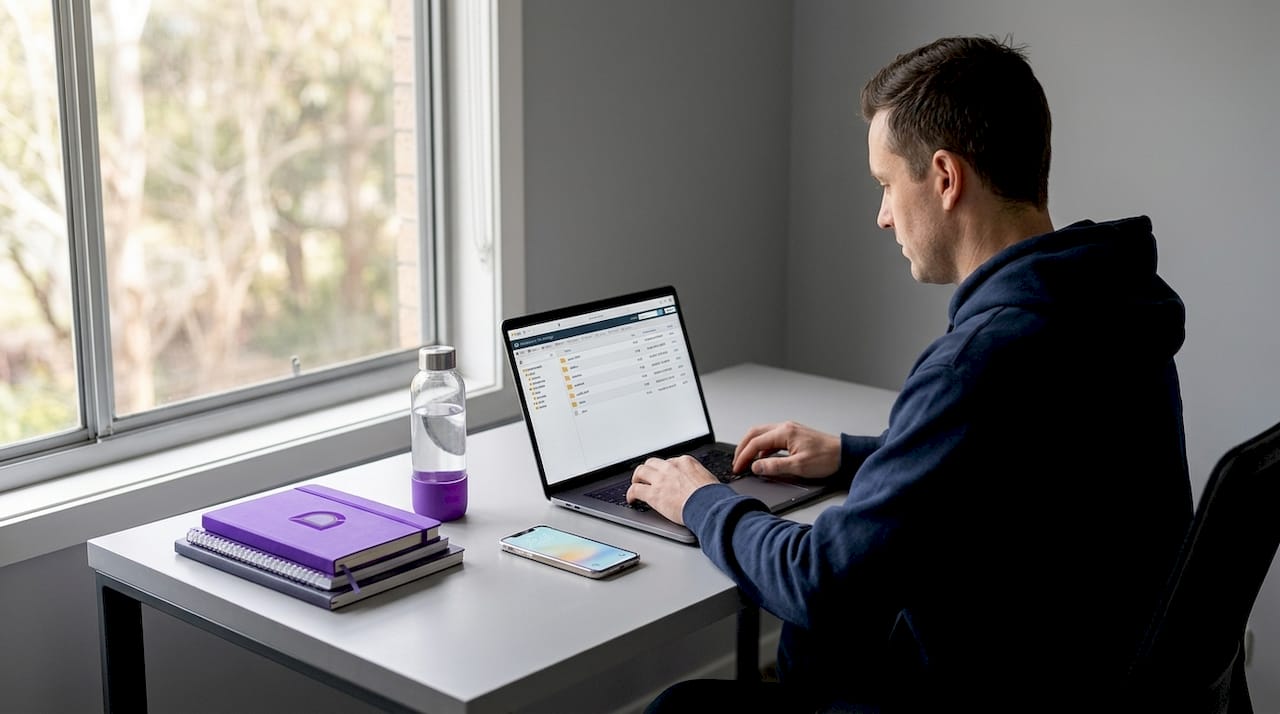
The file manager inside your control panel lets you upload, delete, rename, and edit files directly in your browser. It works like a simplified version of Windows Explorer or Mac Finder, but for your web server. You can also set file permissions, which controls who can read or modify specific files.
Email account management
One of the most practical tools in any control panel is email management. You can create professional email addresses using your own domain (such as [email protected]), set up email forwarding, configure spam filters, and manage mailbox storage. For small businesses, this is often one of the first things they set up.
Databases and CMS installation
If you’re running a content management system like WordPress, your control panel handles the database that powers it. You can create new databases, assign users, and manage permissions. Better still, most control panels include one-click installers that simplify WordPress installation dramatically, reducing a multi-step technical process to a single button press.
SSL certificates and security tools
SSL certificates encrypt the connection between your website and your visitors. Most control panels let you install a free SSL certificate in a few clicks. Beyond SSL, you’ll also find tools for managing passwords, setting up IP address blocking, and configuring firewalls.
Pro Tip: Enable two-factor authentication on your control panel the moment you log in for the first time. A compromised control panel password gives an attacker access to every site, database, and email account you host, so this single step protects everything at once.
Backups and restores
Regular backups are your safety net. Most control panels let you schedule automatic backups or run them manually before making major changes. If a plugin update breaks your site or you accidentally delete a file, a recent backup means you can restore everything in minutes.
Comparing popular hosting control panels
Not all control panels are built the same way. The right choice depends on your hosting environment, technical comfort level, and what your hosting provider offers. Here’s a practical comparison of the most widely used options.
| Control panel | Best for | Interface | Resource use | Cost model |
|---|---|---|---|---|
| cPanel | Shared hosting, beginners | Intuitive, icon-based | Moderate to high | Included in most plans |
| Plesk | Windows and Linux servers | Clean, modern | Moderate | Included or add-on |
| hPanel | Beginners on specific hosts | Very simple | Low | Bundled with host |
| CyberPanel | VPS users wanting speed | Functional, modern | Low | Free, open source |
Major control panels differ significantly in user experience, resource consumption, and typical use cases for small businesses. cPanel remains the most widely recognised option and is what most Australian hosting providers bundle with their shared hosting plans. Its icon-based layout makes it easy to find tools quickly, and there’s an enormous library of tutorials available online.
Plesk works across both Windows and Linux servers, which makes it a popular choice for businesses running Windows-based applications. hPanel is a proprietary panel used by specific hosting providers and is designed to be extremely simple, which suits total beginners well. CyberPanel is a lightweight, open-source option that runs well on smaller VPS servers without consuming too many resources.
Pro Tip: If you’re on a shared hosting plan, you won’t get to choose your control panel. It’s decided by your hosting provider. If you’re on a VPS and choosing your own, consider resource efficiency alongside ease of use, especially if your server has limited RAM.
For most individuals and small business owners, cPanel or hPanel will cover everything you need. The priority is getting comfortable with one interface rather than chasing the most feature-rich option.
How to access and use your control panel
Getting into your control panel for the first time is straightforward. Here’s how the process typically works:
- Log into your hosting account. Go to your hosting provider’s website and sign in to your customer dashboard. Most providers include a direct link to your control panel from within that dashboard.
- Find the control panel link. Look for a button or section labelled “cPanel”, “Control Panel”, or your specific panel’s name. Clicking it will either open the panel directly or give you login credentials.
- Access via direct URL. You can also log in through a direct URL, typically your domain followed by a port number. For cPanel, that’s usually port 2083 (for example: yourdomain.com.au:2083).
- Use your credentials. Enter the username and password provided by your hosting company. If you’ve set up two-factor authentication, you’ll also enter a code from your authenticator app.
- Navigate by category. Most control panels group tools into sections like “Files”, “Databases”, “Email”, and “Security”. Start by exploring each section so you know where everything lives before you need it urgently.
Once you’re inside, spend a few minutes clicking through the sections without changing anything. Familiarity with the layout saves you time later. Most panels also include a search bar at the top where you can type what you’re looking for, which is handy when you’re still learning the interface.
On the security front, control panels are a single point of access and therefore a security focal point that requires strong authentication and regular updates. Beyond two-factor authentication, use a strong unique password, keep your panel software updated, and review your access logs periodically for anything unusual.
Pro Tip: If you ever notice your website behaving strangely after a server update, check your control panel’s error logs first. They’re usually found under the “Metrics” or “Logs” section and can pinpoint the problem faster than any other method.
One more thing worth knowing: control panels consume system resources, and on a small VPS plan, a heavy panel can actually slow down your website. If you’re technically confident and running a lean server, managing some tasks directly via command line is a legitimate alternative. But for the vast majority of small business owners, a good control panel is absolutely the right tool.
My take on choosing the right control panel
I’ve worked with a lot of small business owners who spend weeks comparing control panels, agonising over features they’ll never use. Here’s what I’ve actually found: the best control panel is the one your hosting provider already includes, provided it covers the basics well.
What I’ve seen trip people up more than anything else is neglecting security. A business owner sets up their hosting, gets the site live, and never revisits their control panel settings. Then six months later, a weak password leads to a compromised account, and suddenly every website, email account, and database they host is at risk. Enabling two-factor authentication from the start is the single most impactful thing you can do, and it takes less than five minutes.
I also think people underestimate how much the resource footprint of a control panel matters. If you’re on a small VPS and your panel is consuming 20% of your available RAM just sitting idle, that’s 20% not available for your actual website. Small business owners benefit most from panels that balance ease of use with resource efficiency, not the ones with the longest feature list.
My honest advice: pick a hosting provider with solid local support, get comfortable with the control panel they offer, lock down your security settings on day one, and lean on their support team when you’re unsure. That combination will serve you far better than hunting for the “perfect” panel.
— James
Ready to take control of your hosting?
If this article has made hosting feel a lot less intimidating, that’s exactly the point. Com offers web hosting plans built for Australian individuals and small businesses, with popular control panels included and local support you can actually reach when you need help.
Whether you’re launching your first site or moving an existing one, Com also handles domain registration and management so your domain and hosting work together from day one. If you’re running WordPress, check out Com’s WordPress hosting plans designed to make CMS management through your control panel as smooth as possible. And if you want a professionally built site to go with your hosting, the website design services team can help you get there.
FAQ
What is a hosting control panel used for?
A hosting control panel is a web-based dashboard that lets you manage your website, email accounts, domains, files, databases, and security settings without using command-line tools. It’s the central hub for your entire hosting account.
Is a hosting control panel included with my hosting plan?
For most individuals and small businesses on shared hosting, the control panel is included in the hosting plan at no additional cost, with the cost built into the monthly or annual subscription.
What are the most popular hosting control panels?
The most widely used options are cPanel, Plesk, hPanel, and CyberPanel. cPanel is the most common choice for shared hosting, while CyberPanel suits those on VPS servers who want a lightweight, open-source alternative.
How do I log into my hosting control panel?
You can access your control panel through your hosting provider’s customer dashboard or directly via a URL using your domain and a specific port number, such as port 2083 for cPanel.
How do I keep my hosting control panel secure?
Enable two-factor authentication immediately, use a strong unique password, and keep your panel software updated. Because a compromised control panel gives access to all your hosted sites and data, treating it as a high-priority security asset is non-negotiable.
Leave a Reply