




Moving your website to a new host sounds simple until you are halfway through and your homepage is returning a 500 error. The hosting migration process covers far more than copying files from one server to another. It includes auditing your current environment, rebuilding server configurations, managing DNS cutover timing, validating every function of your site, and maintaining a rollback plan throughout. Whether you are a developer switching a client to a better VPS or a business owner chasing faster load times, understanding the full scope of a hosting migration is what separates a clean cutover from hours of unplanned downtime.
Table of Contents
- Key takeaways
- What is a hosting migration process, really?
- Pre-migration preparation: audits and planning
- Core migration steps: transfer to DNS cutover
- Post-migration validation and monitoring
- Advanced considerations for complex migrations
- My honest take on hosting migrations
- Ready to move your website with confidence?
- FAQ
Key takeaways
| Point | Details |
|---|---|
| Migration is more than file transfer | A successful hosting switch requires auditing, environment rebuilding, DNS management, and post-migration testing. |
| Lower your DNS TTL early | Reducing TTL to 300 seconds at least 24 to 48 hours before migration dramatically shortens propagation time. |
| Test before you cut over | Use hosts file overrides or temporary URLs to validate the new server before pointing your DNS anywhere. |
| Keep old hosting active post-migration | Retain your old account for at least 48 hours after DNS switch to catch any hidden issues before they become crises. |
| Preparation determines success | The difference between a smooth migration and a failed one is almost always found in the preparation and validation phases, not the transfer itself. |
What is a hosting migration process, really?
At its core, a hosting migration process is the structured movement of your entire website environment, including files, databases, email accounts, DNS records, SSL certificates, and server configurations, from one hosting provider or server to another. The word “structured” is doing a lot of heavy lifting in that sentence.
People often mistake migration for a backup restore. It is not. A migration requires you to replicate or rebuild an environment, not simply drop files into a folder. The types of hosting plans you are moving between will directly determine the complexity involved.
Common migration types include:
- Shared hosting to shared hosting (different provider, same server type)
- Shared hosting to VPS or dedicated server
- CMS platform migrations (such as moving between WordPress versions or to a headless CMS)
- E-commerce specific migrations (moving product catalogues, customer data, order history)
- Managed hosting to self-managed server environments
Common reasons businesses trigger a migration:
- Current host has poor performance or unreliable uptime
- Cost structures have changed and a cheaper or better-value option exists
- Business growth demands more resources than the current plan can deliver
- Security concerns or lack of local support
- Platform or technology changes requiring a different server environment
Each migration type carries its own risks. Moving from shared hosting to a VPS, for instance, is a significant technical shift. When you are on shared hosting, your provider manages the server layer invisibly. On a VPS, that responsibility shifts to you. Understanding which type of migration you are performing before you start is the foundation of every decision that follows.
Pre-migration preparation: audits and planning

The success or failure of migration depends far less on the actual transfer and far more on what you do in the days before. Skipping preparation is the single biggest mistake site owners and developers make.
Run through this preparation checklist before touching anything on the new server:
- Document your current hosting environment: PHP version, web server type (Apache, Nginx), database version, operating system
- List all active plugins, extensions, and third-party integrations
- Record all email account configurations, forwarders, and autoresponders
- Note all cron jobs and scheduled tasks running on the current server
- Export and verify backups of all site files, databases, and email data
- Confirm compatibility of your PHP version and required extensions on the new host
- Review DNS records in full, including A records, MX records, TXT records, and CNAMEs
- Plan your rollback strategy and set a hard deadline for reverting if things go wrong
One step that many developers delay too long is adjusting DNS TTL. Lowering TTL to 300 seconds at least 24 to 48 hours before your migration means that when you do switch DNS, the change propagates globally in minutes rather than hours.
Pro Tip: When auditing your plugin list before migration, take the time to check what each plugin actually does. Sites that have been running for three or more years often carry redundant or overlapping tools that add cost and performance overhead. A migration is an excellent opportunity to consolidate.
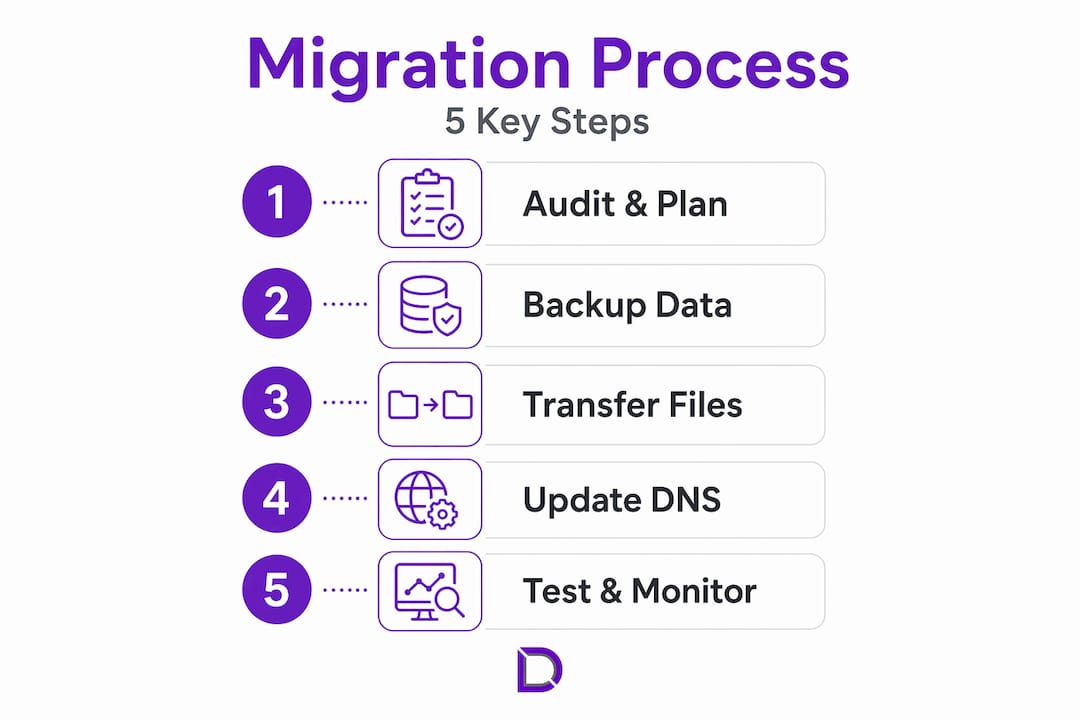
Also worth noting: caching and security plugins should be deactivated before you export your site. These plugins frequently interfere with the export and import process, causing incomplete or corrupted backups.
Core migration steps: transfer to DNS cutover
Once preparation is complete, the active migration phase begins. The steps below apply broadly across migration types, though the technical depth required will vary based on your scenario.
-
Choose your migration method. Automated tools and migration plugins are available for platforms like WordPress. Manual migration gives you the most control and is preferred for complex or large environments. Many hosts also offer assisted migration services.
-
Export site files. Download all files from your current server via FTP or SSH, including hidden files such as ".htaccess
. Missing.htaccess` is one of the most common causes of broken URLs on the new server. -
Export the database. Use phpMyAdmin or a command-line dump via
mysqldump. Confirm the export is complete and test-restore it locally if possible. -
Rebuild the server environment. This step is critical if you are moving between server types. OpenVZ container images cannot be copied directly to KVM due to differing virtualisation architecture, so you must rebuild the OS and services, then transfer data separately. Even between similar environments, you will need to recreate the web server, database server, mail server, cron jobs, and firewall rules.
-
Import files and database to the new server. Upload files to the correct directory, import the database, and update the site configuration file (such as
wp-config.phpfor WordPress) to point to the new database credentials. -
Test the site before touching DNS. Use a hosts file override or temporary URL to view the site on the new server while your live site continues running on the old one. Check every page template, form, checkout flow, and admin panel.
-
Migrate SSL and email. Install or reissue your SSL certificate on the new host. Recreate all email accounts and test sending and receiving before the DNS switch.
-
Update DNS records. Point your A record (and any relevant subdomains) to the new server IP. Because you lowered TTL in advance, propagation should be complete within 10 to 30 minutes for most users.
Pro Tip: Do not cancel your old hosting account the moment the site appears to be working on the new server. Wait a minimum of 48 hours after the DNS switch. Real user traffic will reveal issues that testing environments do not.
Migration method comparison
| Method | Best for | Technical skill required | Typical risk level |
|---|---|---|---|
| Automated plugin tool | Small to mid-size CMS sites | Low to moderate | Low |
| Manual file and database transfer | Complex or large sites | High | Moderate |
| Host-assisted migration | Non-technical site owners | Low | Low to moderate |
| Full server rebuild | Shared to VPS or container type changes | High | Moderate to high |
Post-migration validation and monitoring
Going live on the new server is not the finish line. This phase is where migrations most often unravel quietly, with issues surfacing hours or days after the cutover.
Keep your old host active as a safety net for a minimum of 48 hours after DNS propagation completes. If something critical breaks, you can repoint DNS and restore service rapidly.
Work through this post-migration validation checklist:
- Confirm the homepage and all key pages load correctly over HTTPS
- Test all contact forms, login portals, and checkout flows
- Check that admin panels and dashboards are accessible and functional
- Verify all email accounts are sending and receiving correctly
- Confirm SSL certificate is active, correctly installed, and auto-renewing
- Test cron jobs and any scheduled automated tasks
- Check that image paths, internal links, and media files resolve properly
- Submit updated sitemap to Google Search Console and Bing Webmaster Tools
Post-migration monitoring of server performance should run intensively for 7 to 14 days. Watch CPU usage, RAM consumption, disk I/O, and error logs. Real user traffic patterns often expose issues that synthetic testing misses entirely.
Pro Tip: One of the most overlooked SEO risks post-migration is a misconfigured redirect or a missing canonical tag. Monitor your Google Search Console for crawl errors daily during the first two weeks. A quick response to 404 spikes can prevent ranking drops.
Advanced considerations for complex migrations
Not all migrations are equal. Specialist scenarios introduce cost, time, and technical complexity that basic guidance does not address.
E-commerce migrations
Moving an e-commerce store requires migrating product data, customer records, order history, pricing rules, and payment gateway configurations. Errors in any of these layers can cause revenue loss. Specialised e-commerce migration tools cost between $50 and $200, depending on data volume, and are worth the investment for larger stores.
Platform migrations
Migrating from a traditional WordPress setup to a headless CMS is a fundamentally different undertaking from a standard hosting switch. You are rebuilding the front-end delivery layer entirely. Professional implementation for this type of migration typically adds £1,500 to £4,000 to the project cost based on content volume and complexity.
Migration cost and complexity overview
| Migration type | Typical cost range | Complexity | DIY viable? |
|---|---|---|---|
| Shared to shared hosting | Minimal (time only) | Low | Yes |
| Shared to VPS | Low to moderate | High | With experience |
| E-commerce platform transfer | $50 to $200 for tools | Moderate to high | With specialist tools |
| WordPress to headless CMS | £1,500 to £4,000+ | Very high | Rarely |
For any migration involving scalable hosting architecture or a significant platform shift, having a professional evaluation before committing to a direction will save far more money than it costs. Knowing what you are walking into is not optional at this level of complexity.
My honest take on hosting migrations
I have watched more migrations go sideways than I care to count, and the pattern is almost always the same. The technical transfer worked fine. What failed was everything around it.
In my experience, the environment rebuild when moving from shared hosting to a VPS is where most developers underestimate the workload. The assumption is that the server is “just like shared hosting, but yours.” It is not. You are now responsible for the web server, the firewall, the database daemon, the mail server, and every security update going forward. That is a fundamentally different operational model, and walking in without that understanding creates serious problems quickly.
The DNS TTL change is another one I see skipped constantly. When DNS propagation takes 24 hours because nobody lowered the TTL beforehand, your clients are calling you at 11 PM wondering why their site is down. Five minutes of prep work in advance eliminates that entirely.
My strongest advice: do not treat migration as a one-day event. It is a project with a preparation phase, an execution phase, and a monitoring phase. Compress any of those and you introduce risk. The cost-benefit analysis for complex migrations, particularly platform changes, should also be honest. Factor in the implementation cost, the ongoing maintenance overhead of the new environment, and the opportunity cost of your team’s time. Sometimes a well-configured current environment is a better answer than a major migration.
— James
Ready to move your website with confidence?
Hosting migration is a significant technical undertaking, and having the right support in your corner makes a real difference. Com offers reliable, Australian-hosted web solutions backed by personalised local support that understands the needs of businesses at every scale.
Whether you need a dependable new home for your website or help managing DNS and domain records through a migration, Com’s web hosting plans are built for Australian businesses that need performance they can count on. For domain transfers and DNS management during your migration, the domain management service keeps everything organised and accessible in one place. If your migration involves a platform change and you need a fresh design to go with it, the website design team is ready to help you launch with confidence.
FAQ
What does a hosting migration process involve?
A hosting migration process involves transferring your website’s files, databases, email accounts, SSL certificates, and DNS records from one hosting environment to another. It also includes rebuilding server configurations, testing on the new host before cutover, and monitoring the site post-migration.
How long does a hosting migration take?
A straightforward shared hosting migration can be completed in a few hours. Complex migrations, such as moving from shared hosting to a VPS or switching CMS platforms, can take several days when you account for environment rebuilding, testing, and DNS propagation.
What are the most common hosting migration issues?
The most common issues include broken internal links or image paths, missing hidden files such as .htaccess, database configuration errors, SSL certificate mismatches, and email delivery failures. Most of these are preventable with thorough pre-migration auditing and post-migration testing.
How do I avoid downtime during a hosting migration?
Lower your DNS TTL to 300 seconds at least 24 to 48 hours before the migration, test the new server using a hosts file override before switching DNS, and keep your old hosting account active for a minimum of 48 hours after the DNS cutover.
Do I need a professional to manage a hosting migration?
For small sites on shared hosting, a technically confident site owner can manage the migration with care. For e-commerce stores, VPS transitions, or platform migrations, professional assistance significantly reduces the risk of data loss, extended downtime, and SEO damage.
Leave a Reply